 inktype.cc
Choose your sheet
Match the template to the characters you need
The language menu changes the characters printed in the grid. English covers basic Latin. Czech, Danish, Dutch, Finnish, French, German, Hungarian, Italian, Norwegian, Polish, Portuguese, Slovak, Spanish, and Swedish add the letters and marks those languages use. Russian, Ukrainian, and Greek print their own alphabets instead of the Latin one; add an English sheet if you want both. The Empty sheet gives you blank cells for replacements or extra glyphs.
The Download template menu also has a Ligatures sheet for your language, with wider boxes for letters you write joined up, such as fi. To give each letter a second or third version, fill in your letters sheet again and upload the copies together.
Download a PDF for printing or a PNG for a tablet drawing app. Both carry the same four coded corner markers, so do not copy the grid into a new document or move the corners.
Print the complete sheet
In the print dialog, choose Fit to page or Scale to fit. The sheet is A4, so on Letter paper it prints a little smaller, which inktype reads just as well. Turn off borderless printing, which can cut off the edges. Use white, unlined paper and check that none of the four black markers has been clipped by the printer margin.
The processor corrects camera perspective, but it still expects the printed grid and corner markers to keep their original relationship.
Use dark ink and stay inside the dashed border
A black or dark pen gives the clearest separation from the paper. Write naturally, but leave a narrow gap between the stroke and every edge of its cell. This matters most for long flourishes, capitals, and letters with descenders.
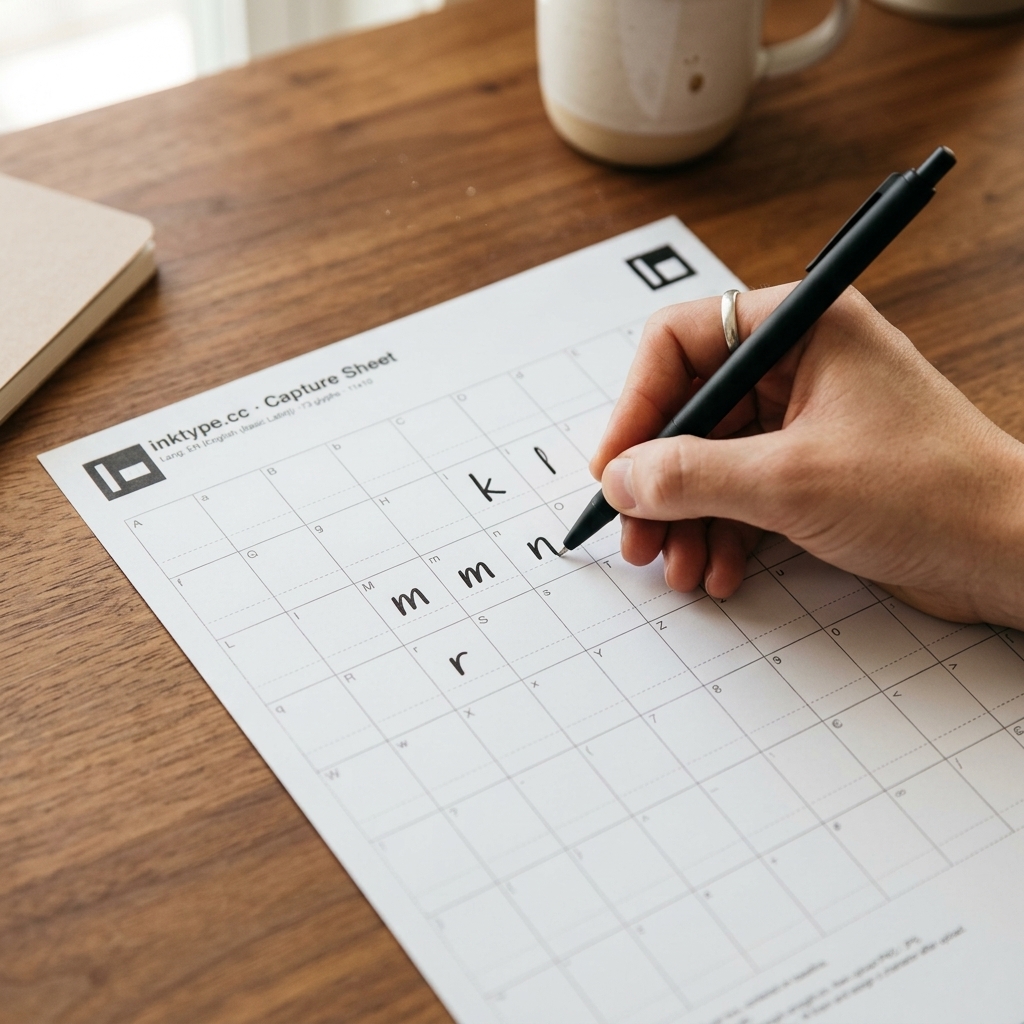
To help your handwriting look consistent once compiled into a font:
- Write one character in each labelled box.
- Keep your baseline steady and maintain a similar body height for lowercase letters.
- Keep loops open in letters such as a, e, o, and g so they do not fill with ink.
- Do not trace the printed label or dashed cell border.
- Keep hands, ink, tape, and notes away from all four corner markers.
- If one character goes wrong, use an Empty sheet later instead of squeezing a correction into the same box.
Turn an article, notes, or older letters into a font
A font file needs isolated letters with clear baselines and widths. Scanning a handwritten article or diary page directly produces overlapping strokes that the processor cannot separate into clean font glyphs.
To turn an existing handwritten article or someone else's letters into a font, download the PNG capture sheet. Open that PNG in an image editor. Crop clear individual characters from your scan of the original writing, paste each letter into its matching box on the template grid, and keep all four black corner markers intact. When finished, upload that PNG directly to inktype.cc.
Show the complete sheet in even light
Lay the page flat and hold the phone roughly parallel to it. Include a small border of the surface around the paper so every marker is fully visible. Check the photo for motion blur, glare, and a shadow from the phone before you put the sheet away.
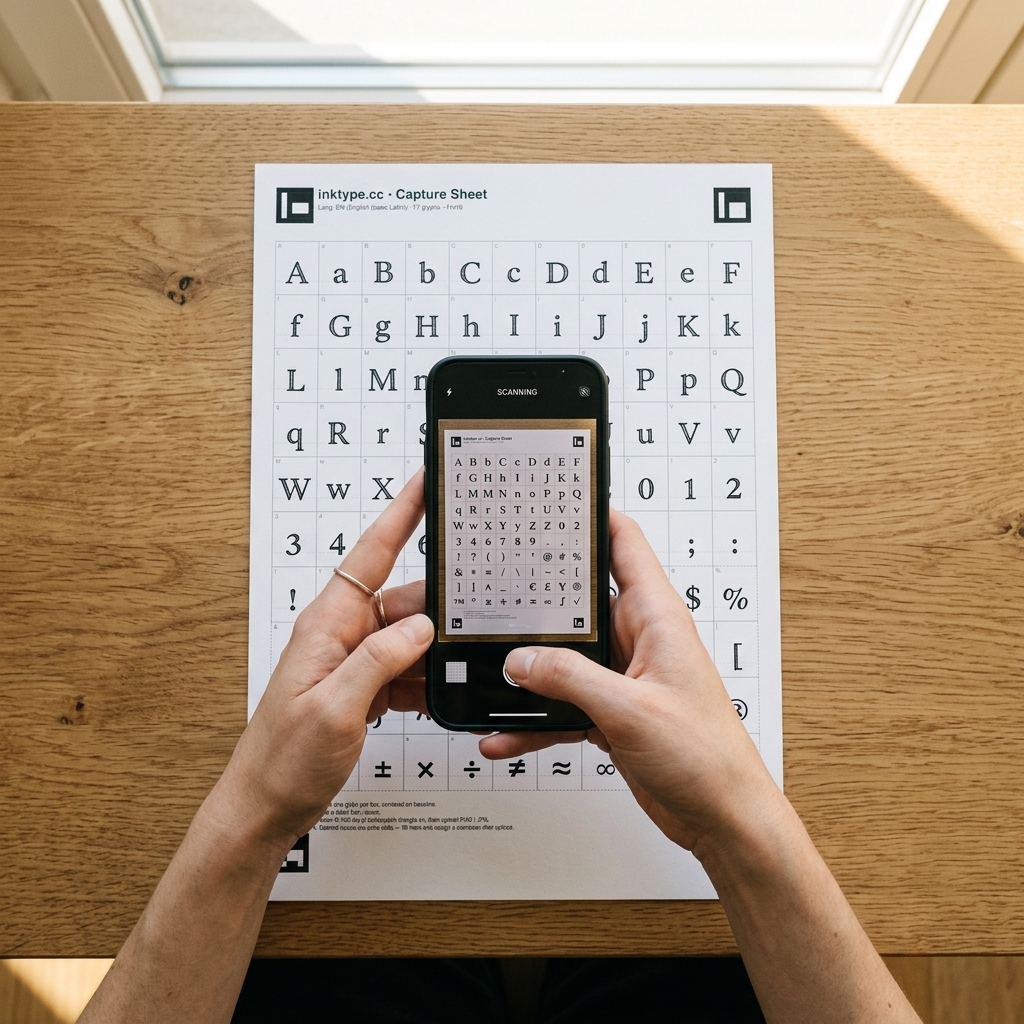
A scanner is also fine. A 300 dpi scan is a useful starting point. Turn off automatic trimming if it removes any part of a corner marker.
Use the original JPG, PNG, or PDF
inktype.cc accepts JPG, PNG, and PDF files up to 25 MB. Upload the camera original when possible. A copy sent through a messaging app may have been resized or sharpened, which can make fine strokes harder to read.
The processing happens in your browser. The file is not uploaded to an inktype.cc server.
Before you start the editor
The sheet contains the characters you plan to type.
All four corners are on the paper, none clipped by the printer.
Each character stays inside one box and away from its edges.
All four markers are sharp, visible, and evenly lit.
If the upload still fails or the extracted shapes look wrong, work through the troubleshooting guide.