 inktype.cc
Watch the walkthrough
From a filled sheet to a font you can install. See the desktop workflow in 48 seconds.
English audio and captions · Mac app shown
The player connects to YouTube only when you load it. Google then receives your IP address and may use cookies or other storage. Privacy details
Transcript
Make a handwriting font with inktype for Mac and Windows. Print a template. Use a dark pen, and write one character in each box.
Photograph or scan the sheet. Keep all four corner markers visible. Open the scan as a new project. Each letter becomes an editable outline.
Auto-process aligns your letters and tightens the spacing. Refine the ink, then type a sample to check how the letters work together.
Name your font and install it from the app. You can also export a font file for your apps or website. Use your handwriting in documents, designs, and apps that support custom fonts. Get inktype for Mac or Windows.
Download your template
Choose a language and download PDF or PNG directly from the template guide.
The templates cover 18 languages. English has basic Latin. Czech, Danish, Dutch, Finnish, French, German, Hungarian, Italian, Norwegian, Polish, Portuguese, Slovak, Spanish, and Swedish add their own accented letters. Russian, Ukrainian, and Greek have their own alphabets and no Latin letters, so upload an English sheet with one of them if you want both. Choose Empty for extra symbols or punctuation. Every language also has a Ligatures sheet for letters you write joined up, such as fi.
For paper, download the PDF and print it on white paper, A4 or Letter, scaled to fit the page.
For a tablet, download the PNG and open it in a drawing app such as GoodNotes, Procreate, or Photoshop. Fill it in with an Apple Pencil or another stylus.
Still choosing a tool? Compare handwriting font makers for differences in workflow, price and supported devices.
Write your characters
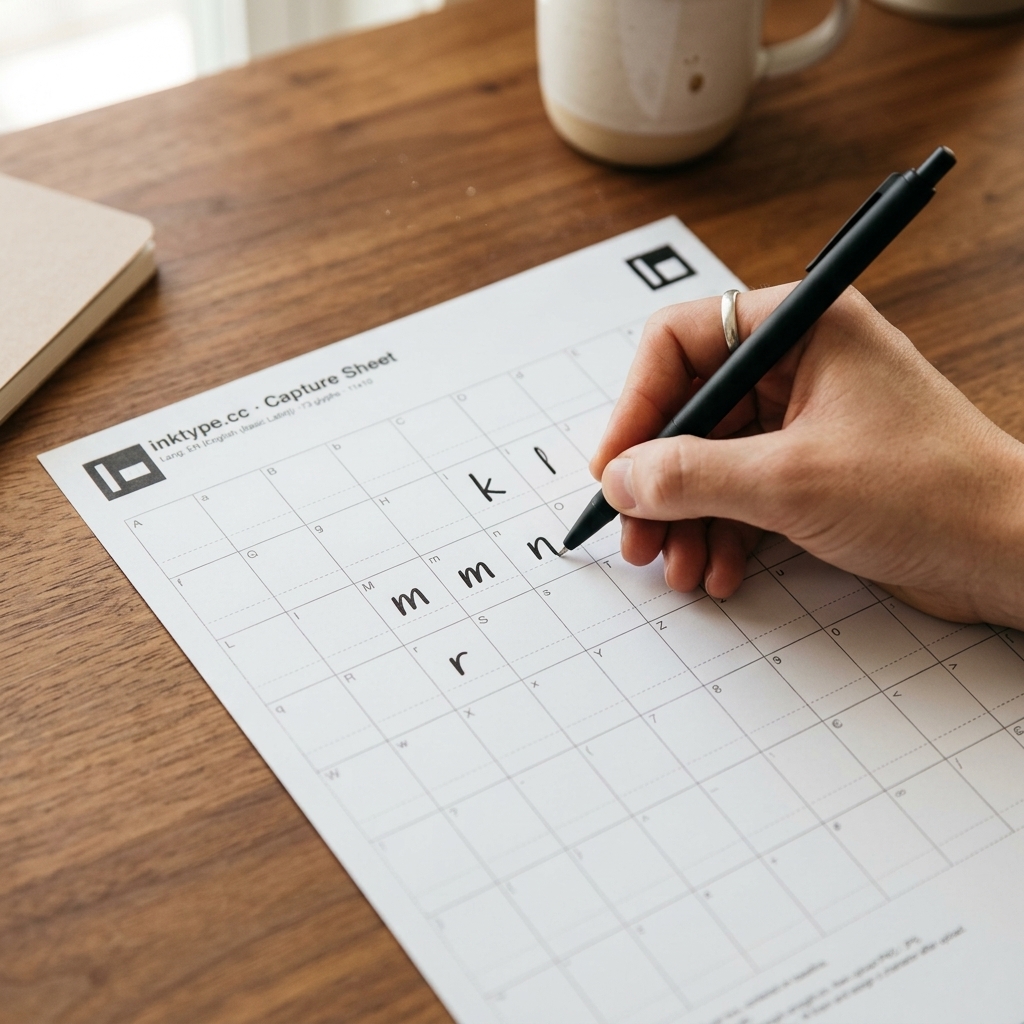
Write one character inside each dashed box. Use your usual handwriting.
- Use a black felt-tip, gel pen, fine marker, or ink pen. Pencil and light blue ink are harder to detect.
- Keep each character inside its box. Strokes across a dashed border may get cut off or merge with another letter.
- Keep the loops in letters such as 'a', 'e', 'o', and 'g' open.
Photograph or scan the sheet
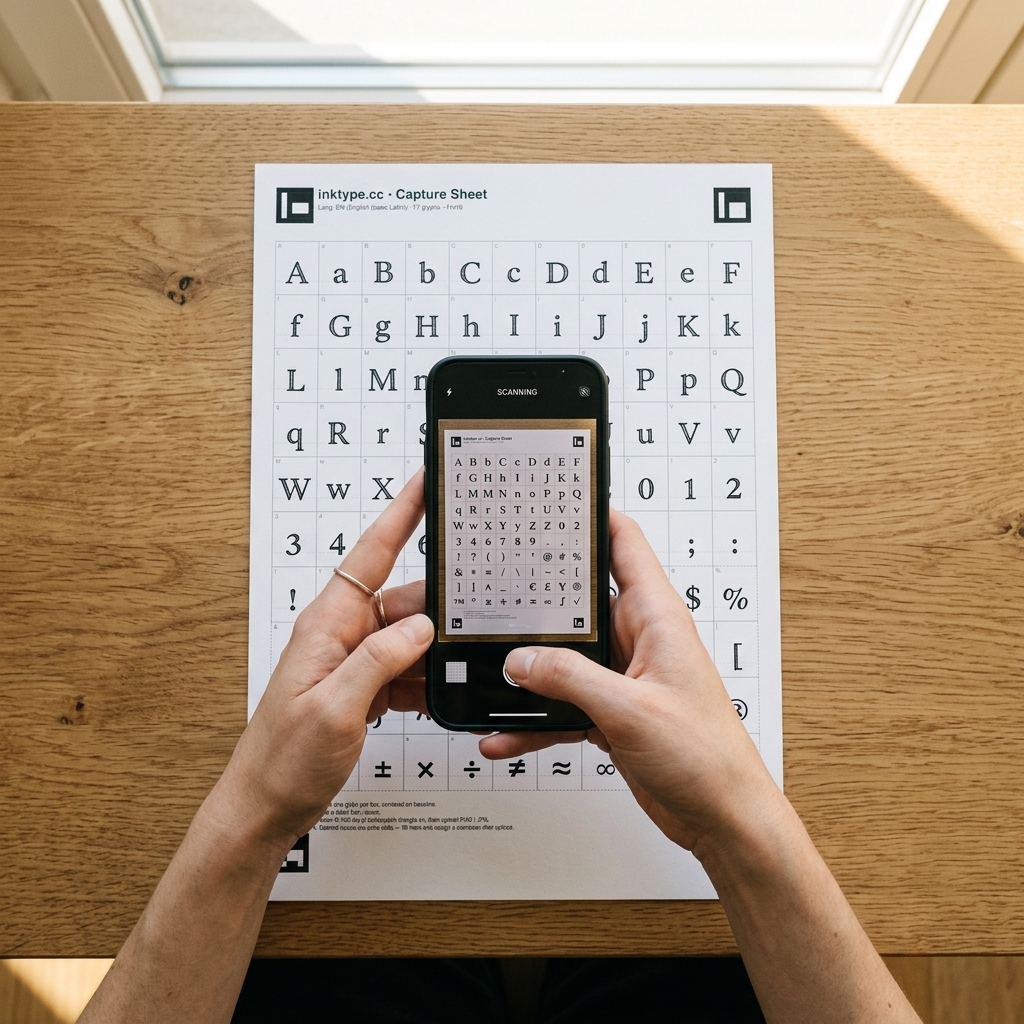
Photograph the filled sheet with your phone, or use a flatbed scanner.
- Place the sheet flat on a well-lit surface. Avoid shadows from your hands or device.
- Hold your phone parallel to the paper.
- Include all four black corner markers in the photo. The app uses them to straighten the sheet.
For a scanner, use 300 dpi and save the scan as a JPG or PNG.
Upload and process
Open the editor and select your filled sheet. You can use JPG, PNG, or PDF files up to 25 MB.
You can select several sheets at once. Extra copies of your letters sheet give each letter a second and third version, and a ligatures sheet adds joined letters. The copy with the most letters filled in becomes your font.
The app reads the corner markers to identify the template language and straighten the sheet. It extracts each character from its box and traces its outline.
Processing runs in your browser. Your scans never go to a server.
Adjust and export your font
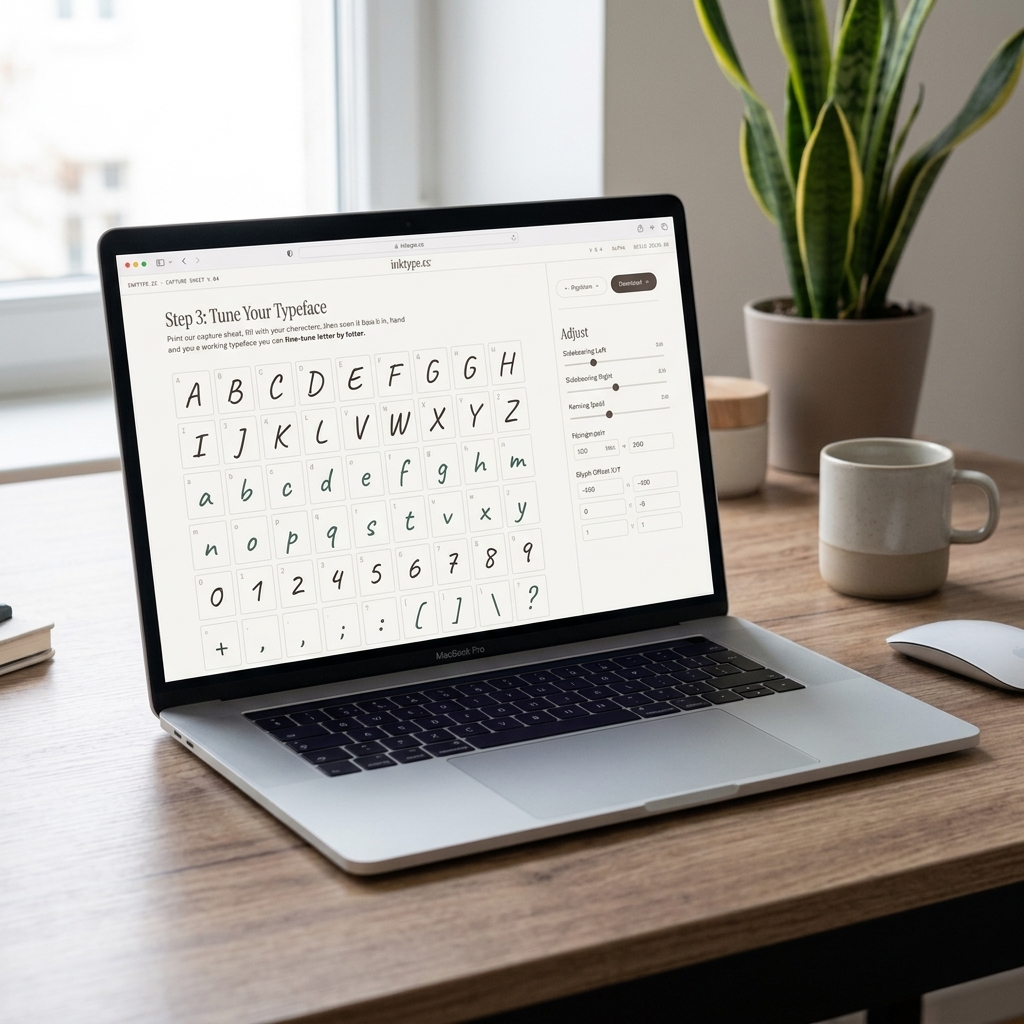
The editor shows your captured characters. Select a character to adjust it:
- Use Position X/Y to move it left, right, up, or down.
- Use Scale to change its size.
- Use Advance to change how far the next character sits from its starting position.
- Use Rotation to straighten a letter you wrote at a slant.
- Use the Ink sliders to keep more or less of the ink: Sensitivity and Threshold for faint or noisy strokes, Smoothness for jagged edges, Fill holes for pinholes, Remove specks for loose dust and smudges.
Use the Global tab to adjust all characters at once. Auto-crop spacing fits spacing to each character's outline, plus the margins you choose. Word space sets the gap between words, and Kerning moves pairs like AV and To closer.
Choose Custom in the preview under the glyph grid to type your own text, or pick a sample to check the result.
Click Export, enter a font name and author, and choose a format: OTF for most computers, TTF for apps that won't open OTF, WOFF2 or WOFF for websites. Download the file and install it in an app or system that supports custom fonts.
A worked example: sheet to font
This is the author’s handwriting from our Calligraphr comparison. The letters were first traced by Calligraphr, then placed digitally on an inktype sheet. It is a reproducible processing example, not a second handwritten sheet or a test of a new phone photo.
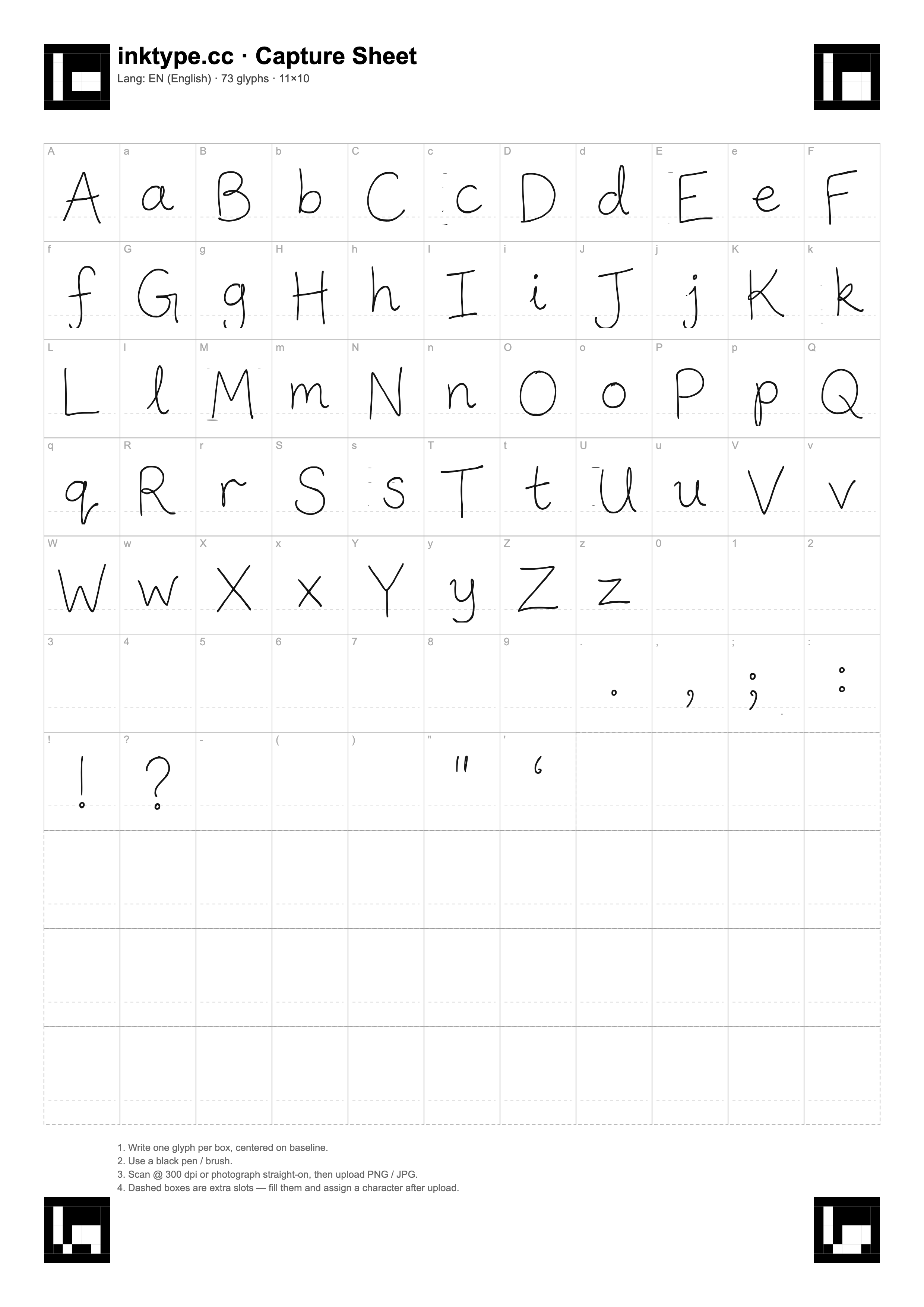
Download the example sheet, open it in the editor, then choose Run auto-process. Keep automatic kerning on at 50%. This example uses the default Remove specks value of 40; inspect stray dots before raising it, because a stronger filter can remove small intended marks.
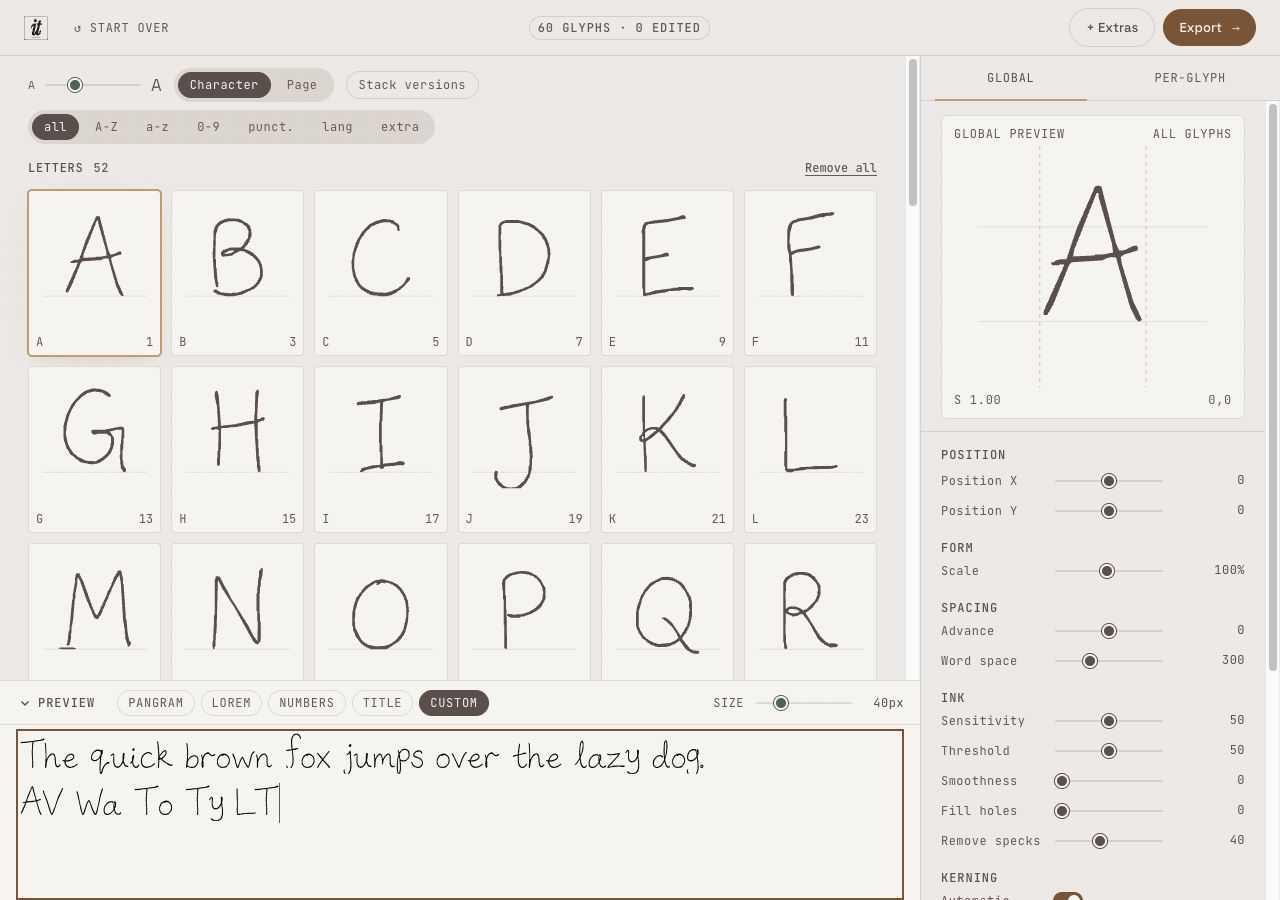
Choose Custom in the preview and type “The quick brown fox jumps over the lazy dog.” Check pairs such as AV and To. Export as OTF or TTF, then follow the installation guide. This sample has letters and eight punctuation marks, but no digits.

Guides for the parts that usually need a second try
Common questions
Is inktype.cc free?
Yes. There are no subscriptions or limits on font exports. inktype.cc is an independent project by kiwiprojekt.
Can I make a font by scanning an article or existing handwriting?
A font file requires individual characters with separate boundaries, baselines, and advance widths. Scanning a handwritten article or page of notes directly does not work well because letters touch and connect. If you have an existing handwritten article or letter that you want to turn into a font, download the PNG capture sheet. In any photo or drawing app, crop each character from the scanned page, paste it into the matching box on the PNG grid, and upload that image to inktype.cc.
Can someone else's handwriting be made into a font?
Yes. If the person can write on the capture sheet, print the PDF and have them fill in the boxes with a dark pen. If you want to make a keepsake or memorial font from someone who cannot fill a template, scan their old letters, recipe cards, or diaries. Crop the best sample of each letter and paste it into the digital PNG template before uploading.
Is there a way to turn handwriting into a font on Windows?
Yes. inktype.cc runs directly in any modern Windows browser, including Microsoft Edge, Google Chrome, and Firefox on Windows 10 and 11. You do not need Microsoft Font Maker or a drawing tablet. Print the capture sheet or fill it digitally, upload your scan, and click Export. In File Explorer, right-click the downloaded font file and choose Install.
How does inktype.cc compare to tools like Calligraphr or Microsoft Font Maker?
inktype.cc is free, needs no account and reads your scan on your device, with no character limit. For the details, see inktype.cc and Calligraphr compared and handwriting font makers compared.
How do I write like a font for the best result?
Write at your normal speed using a black gel pen or fine felt-tip marker. Keep your letter heights and baselines steady across each row. Leave a small gap between your strokes and the dashed cell borders, and keep the loops in letters such as a, e, o, and g open so they remain clear after vector tracing.
Where can I use my exported font?
inktype exports OTF, TTF, WOFF or WOFF2. Install the OTF, or the TTF if an app won't open OTF, and use it in any app that supports custom fonts. WOFF2 and WOFF are for websites. Check your app's font installation or upload instructions.
Can I capture accents or special symbols?
Yes. Each language's template includes its own letters: the accented letters of Polish, Czech, French, and the other Latin-script languages, and the Russian, Ukrainian, and Greek alphabets. For other symbols, fill in an Empty template and assign each character in the editor.
Can my font have ligatures or more than one version of a letter?
Yes. For more versions of your letters, fill in your letters sheet again, up to three copies in all. For ligatures, download the Ligatures sheet for your language from the Download template menu and write each group of letters joined up. Upload the sheets together, or add them later with + Extras. The editor knows each sheet's letters, so you don't type anything. To make another version a letter's main glyph, select it and click Use as main version. Under Versions in the Global tab, choose whether the font switches versions on repeated letters (the default), on every letter, or not at all. Most apps show ligatures and versions on their own. In Word, turn on ligatures and contextual alternates.
Can I edit my font later?
Yes. The app saves your edits in this browser. Upload the same scan file again to restore them. Clearing the browser's stored site data removes those saved edits.